Step 1: Register the device
Before you build the firmware or the dashboard, register a device on the RelayX console. You need its API key and secret in the next steps of both tracks.
Devices can also be registered programmatically through the App SDK. See App SDK: Device Management for the API. The console flow below is the fastest path for your first device. Automate it once you need many.
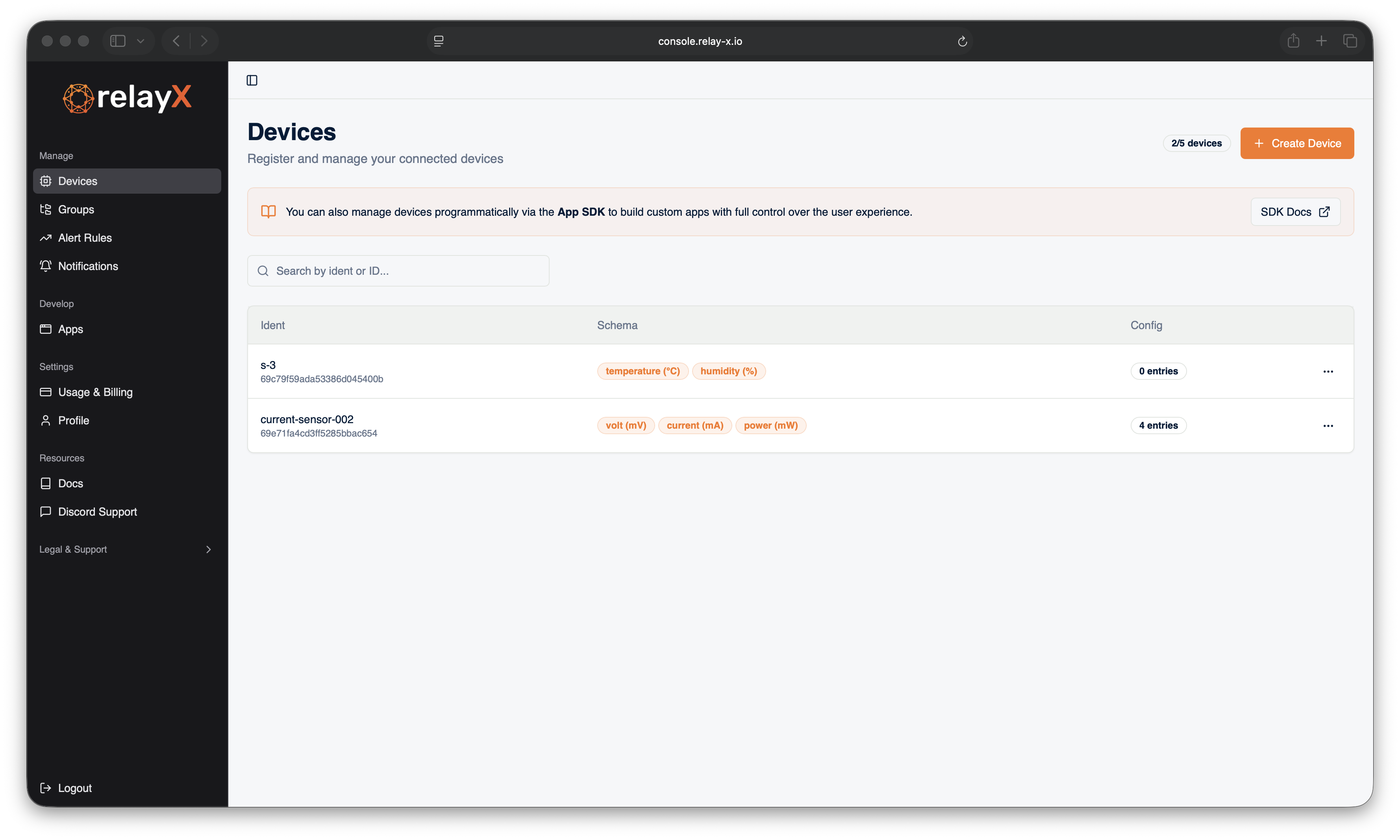
Open the devices page
Log into the dev console and navigate to Devices in the sidebar.
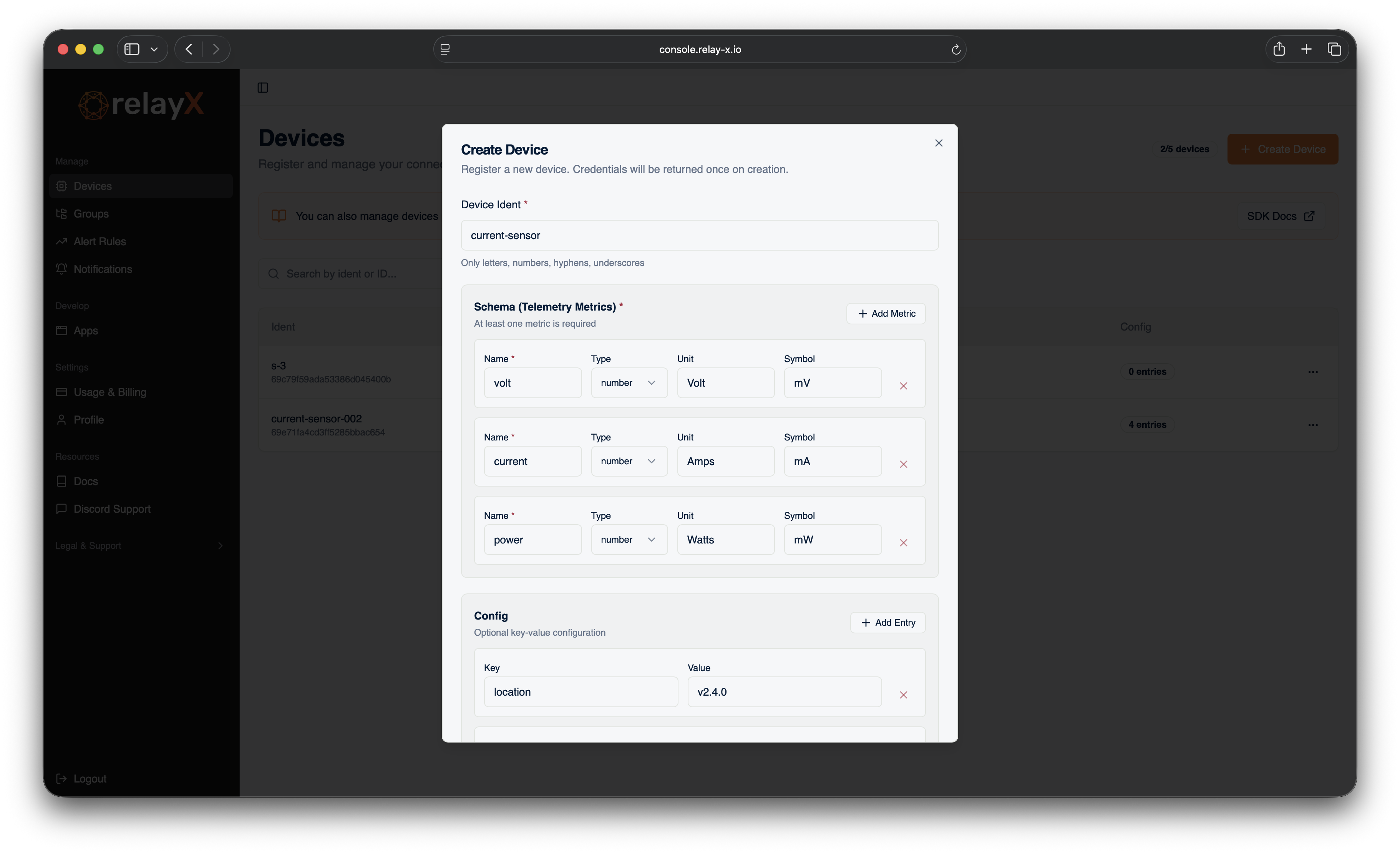
Fill in the device configuration
Click Create device and fill in the form. Use current-sensor as the device ident so it matches the rest of this tutorial. The other fields (firmware version, location, connector, capacity) are surfaced in the dashboard's metadata panel and can be changed later.
When the device is created, the console shows the API key and secret one time.
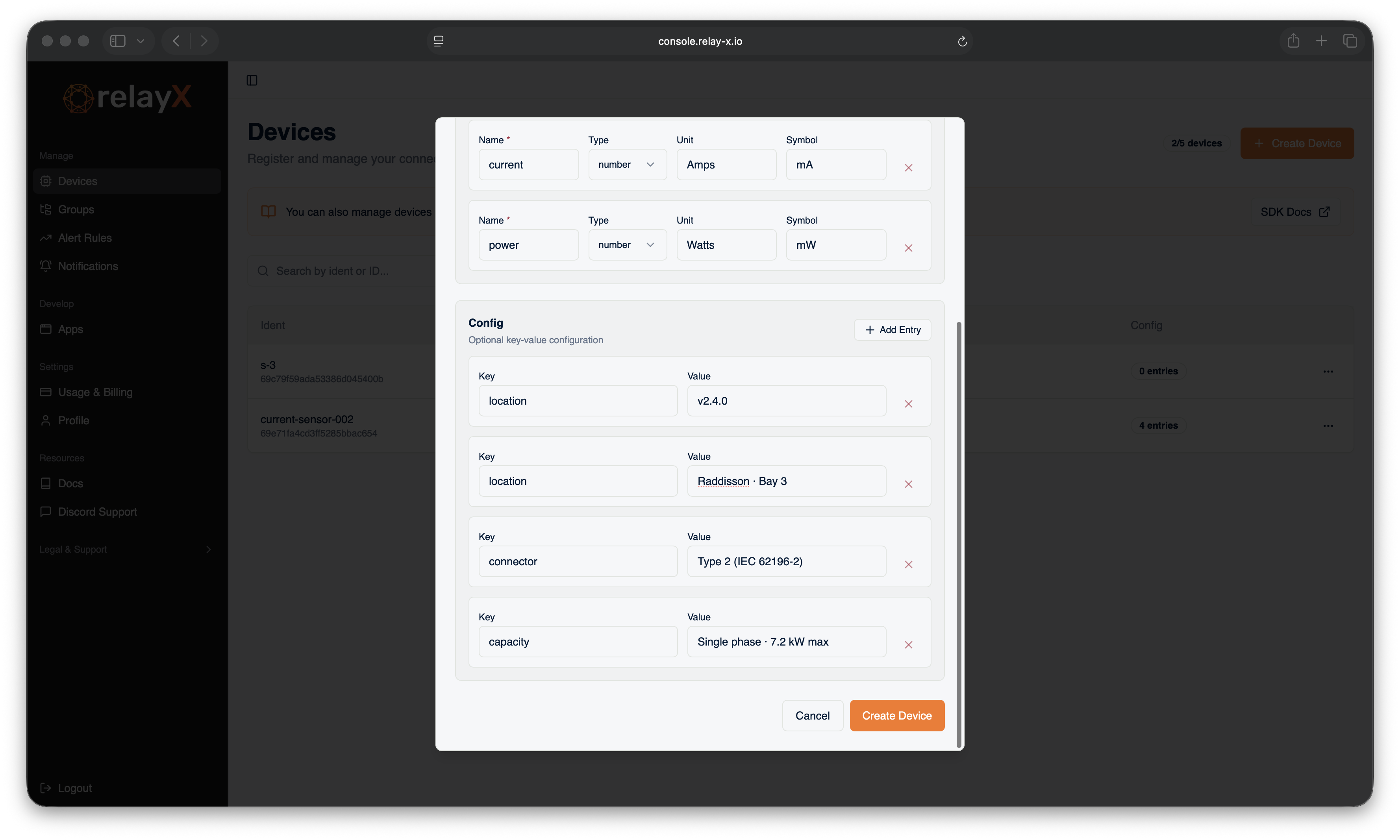
Save the credentials
Download the credentials now.
The backend does not store these credentials. If you lose them, you need to regenerate a new pair from the device page. The old pair stops working the moment you do.
You now have everything the firmware needs. Step 4 of this track places these into device/main/app_shared.cpp.