Build & Run
Set API Keys
To setup the API keys for this app, we need to run the application so that it initializes a data/config.json file. This file will contain our API Key & Secret.
To do this, run
terminal-chat-app
The welcome screen will be displayed. At this point the data/config.json has been created. Select the Exit option to close the app.
In editor of your choice, open the config file located at terminal-chat-example/terminal-chat-app/data/config.json.
Your should see a json like this,
{
  "api_key": "",
  "secret": ""
}
From the developer console, set the API Key & Secret. Save the file and you're good to go!
Run The App
We're going to run 2 instances of the app on 2 different terminal windows so that you can start chatting.
- Open up a terminal
- Run
cd terminal-chat-example/terminal-chat-app - Run
terminal-chat-app - Do the same in the 2nd terminal.
Now that the chat app is up and running, let's join a room.
When you run the app, you will notice 2 option on the right, ie, Join Room and Exit
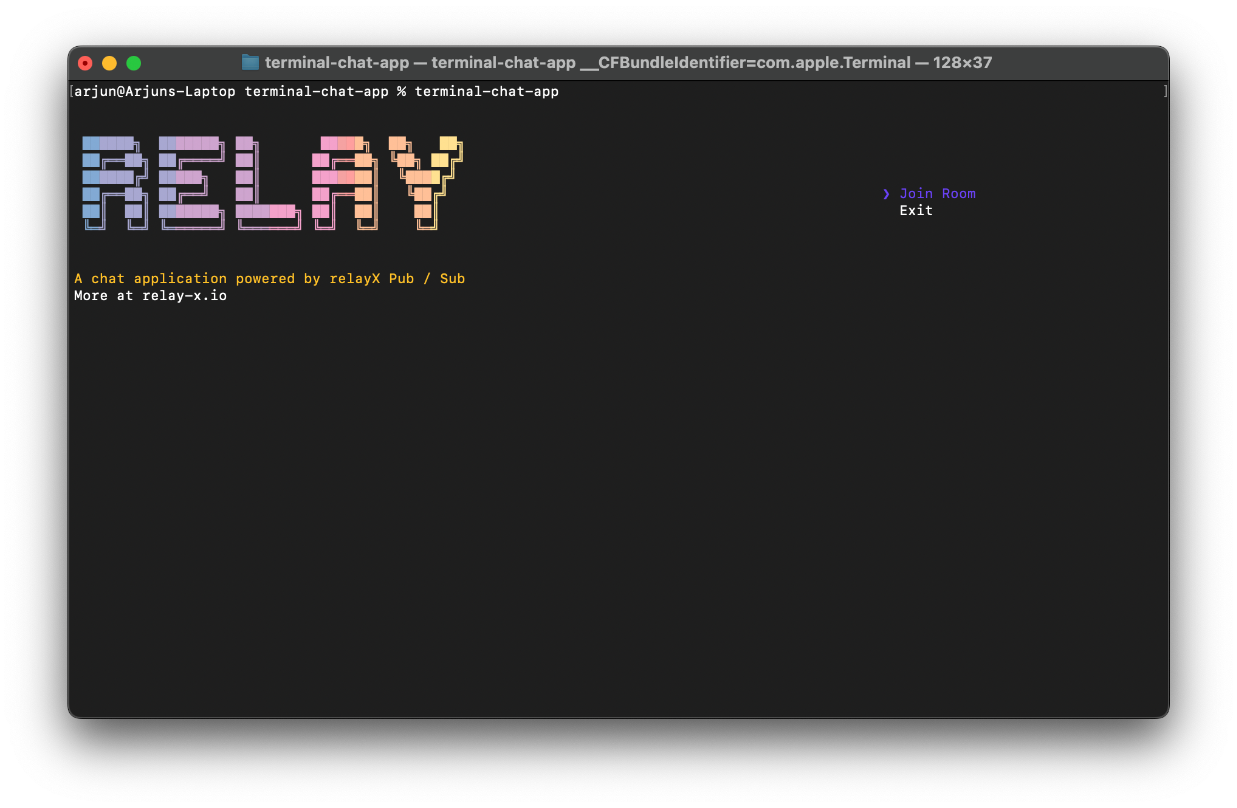
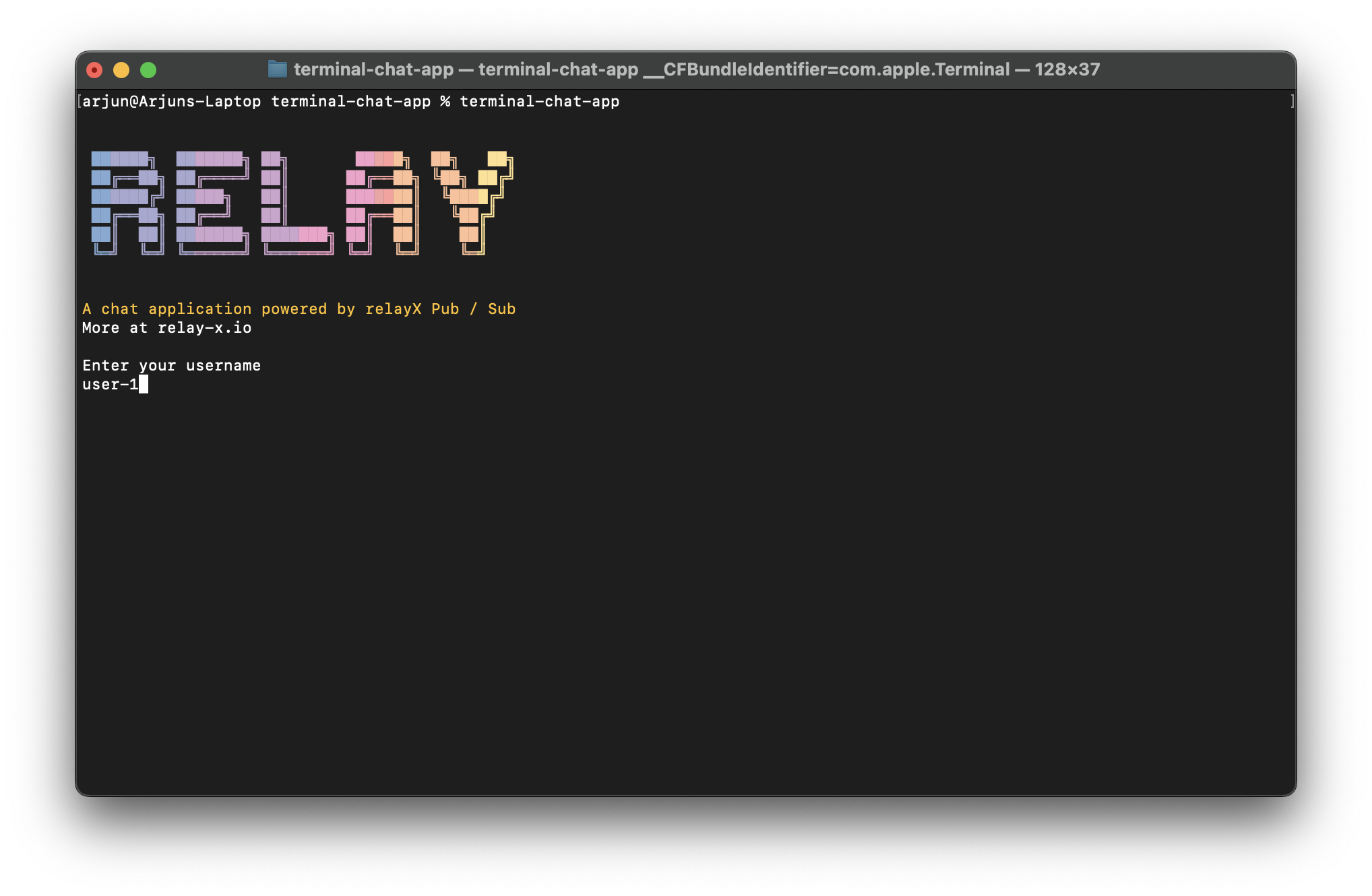
To join a room, press Enter. You’ll then be prompted to enter a username. For Terminal 1, use user-1, though you can choose any name you like.
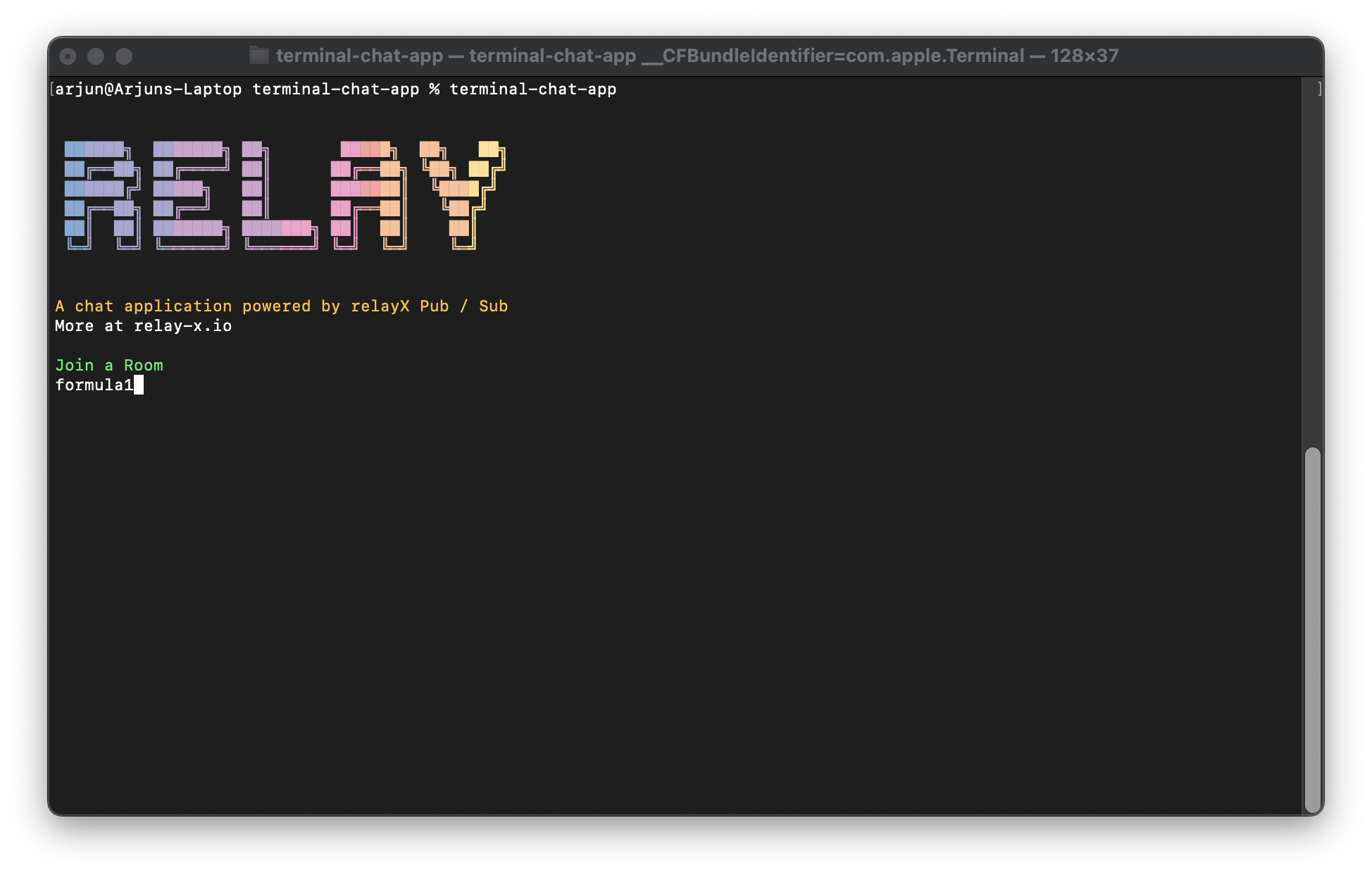
Next, enter the room name. Both terminals must use the same room name for users to be in the same room. Hit Enter once done.
Start chatting away! Type down a message and hit Enter to send.

The next section walks through the application code.